
Professional Project Timeline Tool | Automated Task Dependencies | Excel Project Management Template
QuickGantt revolutionizes Excel project management with smart dependency tracking and management. This professional Gantt chart template automatically manages task relationships, updates schedules, and eliminates manual dependency headaches. Perfect for project managers who need powerful dependency automation in familiar Excel format.
With This Gantt Chart Template, You Have..
- Quick & Easy Project Timeline visualization
- Intuitive Dependencies Tracking and Management
- Auto Task Chaining & Scheduling
- Multi-Level grouping
- Actual vs Plan comparison
- Budget vs Cost Tracking
- Intuitive visual cues: schedule conflicts, holiday, color customization
- Daily / Weekly / Quarterly view
- Color Coding
- Weekend Filtering & Holiday Highlighting
- Up to 2000 days of project duration
Get This Gantt Chart Excel Template Now!
FREE
for Personal Small Project
✓ All Features
✓ Plan up to 35 Records
✓ Up to 180 project days
PRO
for Unlimited Planning
✓ All Features
✓ No limit of records
✓ Up to 2000 project days
✓ 7-day money back guarantee
What Our Customers Say About This Gantt Chart Template

User Guide
- System Requirements
- Enabling The Macros
- Project Setup
- Adding & Editing A Task
- Creating & Managing Dependency
- Auto Task Chaining
- Creating A Milestone
- Creating A Group
- Creating Sub-Group & Sub-Level Item
- Moving, Deleting, Inserting Row
- Duplicating The Items
- Switching Between Views
- Project Baseline (Actual vs Plan Comparison)
- Rescheduling Multiple Items
- Enabling Copy & Paste
System Requirements
- Microsoft Office 365/2013/2016/2019 for Windows;
or Microsoft Office 365 for Mac - Excel Macros: This workbook utilizes Excel macro – refer to below tutorial to see how you can enable Excel Macros
Enabling The Macros
Most features in this template require the macros in the template book to run, so the very first step is to allow macros in this workbook to run.
1. For Windows 10 and Windows 11, you may need to remove the ‘Mark of the Web’ from the downloaded file. Open File Explorer and locate the Excel template file, right-click on the file, choose Properties, and check the Unblock checkbox in the General tab. (Remark: If you don’t see this property there, that means you can skip this step)

2. Please refer to this link to see how to enable macro for Excel workbook : https://support.microsoft.com/en-us/office/change-macro-security-settings-in-excel-a97c09d2-c082-46b8-b19f-e8621e8fe373
Sample Macro Settings: Below is an sample of configurations that allow Macro to run while you will still be notified when Excel workbook contains any macro.
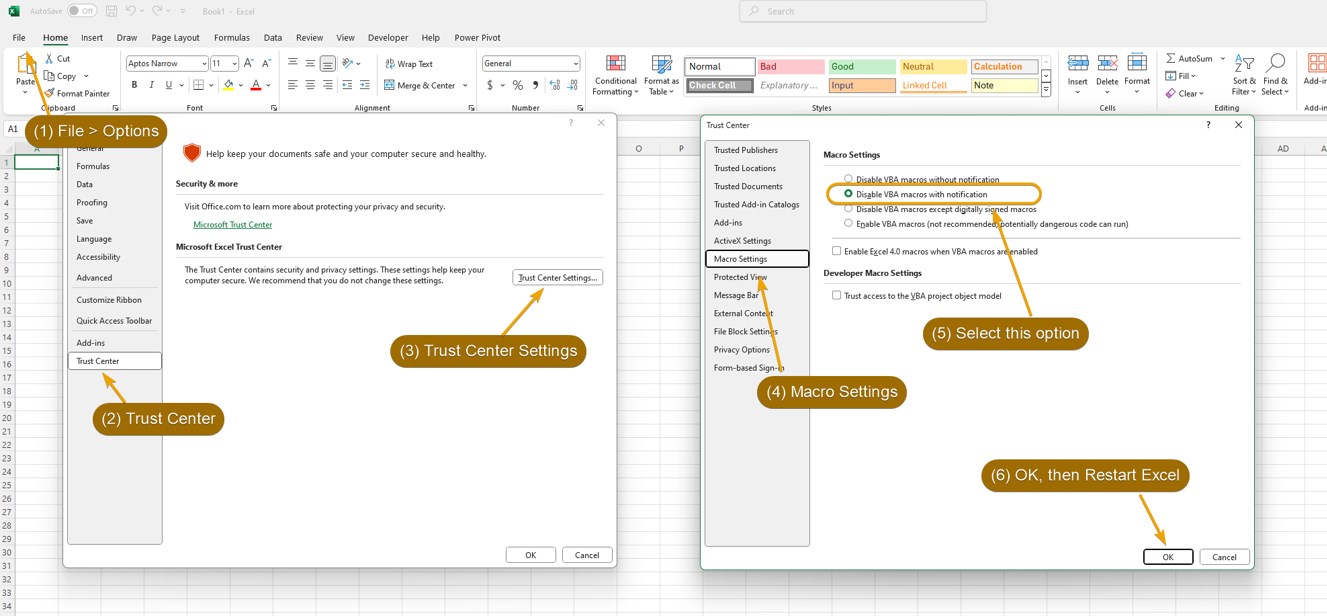
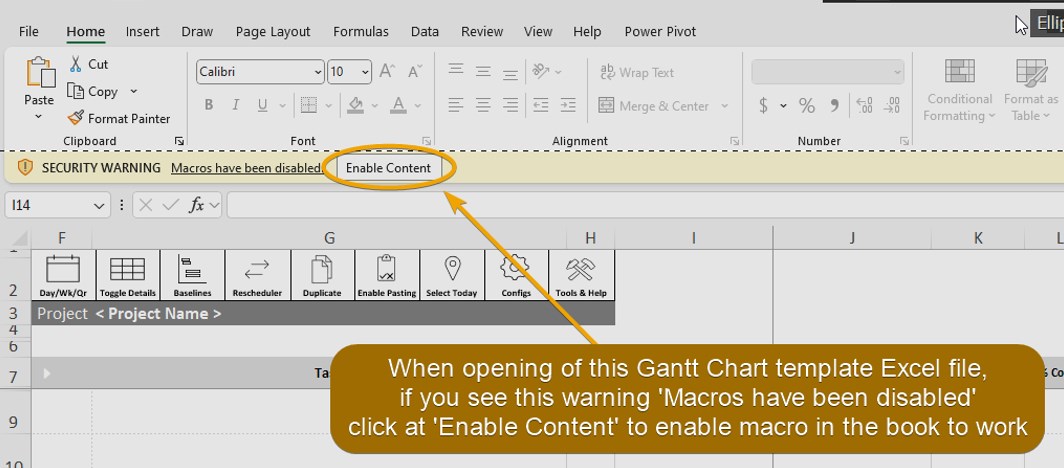
3. When opening the Gantt Chart Template file, if you see the Security Warning like in the following screenshot, then click Enable Content.
Project Setup
Next, let’s set up your project configurations.
- Go to the Project sheet and click Configs button at the top of the sheet.
- Review and update values for the following fields:
- Project Start: Project start date.
- Project Timeline Duration: Duration for project timeline (30 – 2000 days)
- Weekend Mode: Select the most appropriate option the reflect the weekend days of your project.
- Show Weekend: Choose whether to display weekend days in the project timeline area.
- Gantt Chart Labeling: Toggle options for gantt chart labeling.
- Holidays (optional): This information will be used for Net Workdays calculation as well as for the display in calendar area (i.e. holiday will be grey color)
- Assignees (optional): This information will be used for showing drop down list for Assignee inputs. i.e. so that you can quickly select a pre-defined name using drop down list. Note that the template will still allow you to enter a name that is not pre-defined here – for flexibility reasons.
- Click Save Configs button to apply the configurations and return to project view.
Adding & Editing A Task
- Enter task summary in a cell under the Task column.
- Enter task duration under the Dur column.
- Enter task start date, this can be done by either:
- (A) Double Click at the cell under the Start column – there will be a date picker for you to select a date from (Or you can enter the date value directly from keyboard). ; OR
- (B) Double click on the cell under the corresponding date column in the timeline area; or
👉 Finish date will be auto-populated based on entered Start and Dur taking into account as well Weekends and Holidays.
👉 Gantt Chart for this task will be visualized on the timeline area.
- You can edit task details by updating the values in the corresponding cells.
- You may update task progress in percentage in the cell under % Comp column.
- You can change the Gantt Chart color in the cell under Color column.
Creating & Managing Dependency
- Click at the gantt bar representing your predecessor in the timeline area – the bar’s outline will become thicker.
- Click at the gantt bar representing your dependent task.
👉 The dependency link will be created with ‘FS’ (i.e. Finish-to-Start) dependency link type. - To change the dependency link type, or to delete the dependency item, double click at the dependency line and choose the desired option.
- If you selected a gantt bar or a dependency line by mistake, and you want to deselect it, simply click at any cell in the sheet.
| Sidenote: Here are the definitions of task Dependency link type: FS (Finish-to-Start) – dependent task cannot begin until its predecessor is completed. SS (Start-to-Start) – dependent task cannot begin until its predecessor begins. FF (Finish-to-Finish) – dependent task cannot be completed until its predecessor is completed. SF (Start-to-Finish) – dependent task cannot be completed until its predecessor begins. |
5. When there’s a schedule conflict between predecessor and dependent task, the line representing dependency will turn red. Be wary of these visual cues and take actions to resolve the conflicts. You may choose to dependent tasks’ dates manually, or use the Auto Adjustment feature to automatically adjust them based on dependencies – steps as follows:
5.1 Select the cells under the Task column according to the task that needs to be automatically adjusted. This step is optional if you want to address all the dependent tasks dependencies in the project
5.2 Click at the Scheduler button at the top of the sheet.
5.3 Under the Auto Adjustment section, click one of the following options:
- Selected Items: To automatically adjust start dates for SELECTED items based on their dependencies.
- All: To automatically adjust start dates for ALL items based on their dependencies
Auto Task Chaining
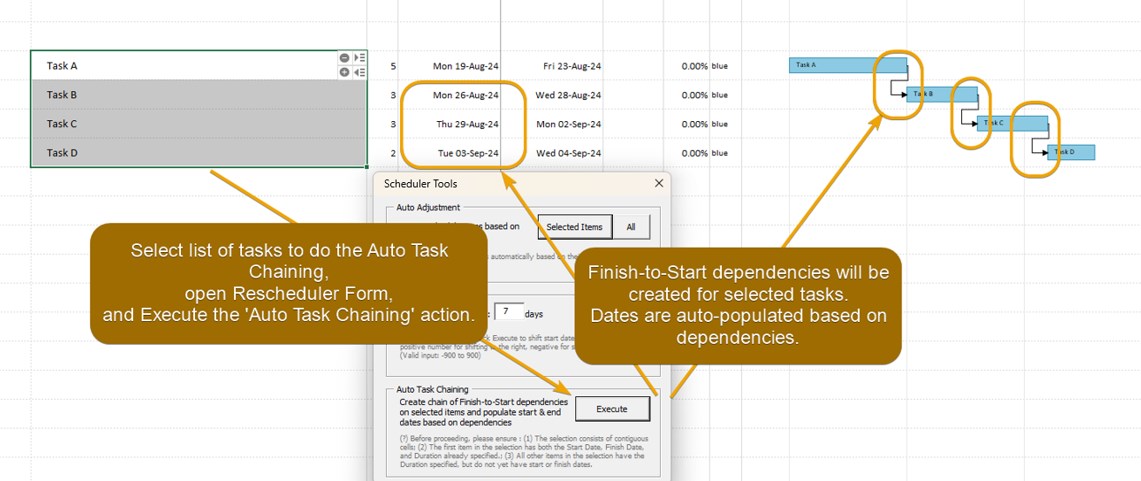
When you are building a list of dependent tasks (of Finish-to-Start type), you can use this feature to help create dependencies and populate dates in just a few clicks.
1. Create a list of dependent tasks – ensure that they are placed sequentially (i.e. top to bottom).
2. Populate duration and start date for the first item. (Note: Finish date will be populated automatically.)
3. Populate duration for the rest of the items

4. Select the tasks, including the first task which already have Duration, Start and Finish dates populated. Click at Scheduler button at the top of the sheet.
You will see a Scheduler Tools form. Under the Auto Task Chaining section, click at the Execute button and click Yes to confirm the operation.
Creating A Milestone
- Enter milestone summary in a cell under the Task column.
- Enter 0 (i.e. number zero) under the Dur column.
- Set task start date
👉 A milestone will be visualized on the timeline area.
Creating A Group
1. Enter group summary in a cell under the Task column, do NOT enter any other information.
2. Double click on the cell on the left to the task.
👉 A triangle arrow icon will appear, signifying that this item is a group. All items in adjacent cells below this group item will be treated as its children.
3. You can double click at the triangle icon to fold or unfold the group.
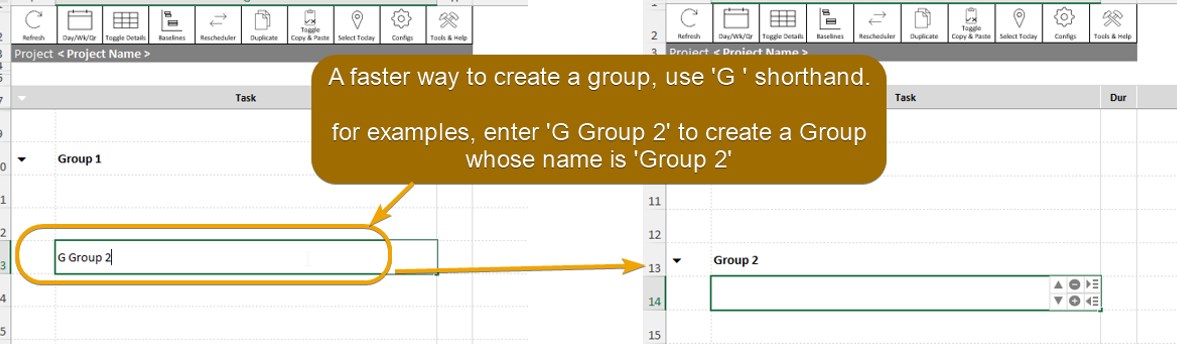
4. An even faster way to create a group is to add ‘G ‘ (a ‘G’ letter and a whitespace) prefix to the group name.
For example, if you want to create a group named ‘Group 2’, then you can type G Group 2 in the cell under the Task column. This way, you can skip step #1 – #2 entirely.
5. To fold or unfold all groups at once, select the top left corner cell with the white triangle icon, click the drop-down icon and choose the desired option.
Creating Sub-Group & Sub-Level Item
To create sub-group and sub-group child items, the key is to first indent the Group to the target level, then create its child items. Please refer to the video above to see how this works.
Moving, Deleting, Inserting Row
- Click at an item cell under the Task column. You will see a set of action buttons shown on the right of the selected cell.
- Click at the desired action i.e. Move Up, Move Down, Delete, Insert, Increase Indent, Decrease Indent.
| Sidenotes – If the selected item is a Group: – Move action will move the whole group. – Delete action: You will be asked whether to delete the group’s children or not Known Issue: Sometimes the action buttons do not appear – When this happens, try zooming in/out of Excel worksheet, and then the buttons should appear. |
Duplicating The Items
- Select the cells of the items you want to duplicate.
- lick at the Duplicate button at the top.
- Select the destination cell and click OK.
Switching Between Views
- To switch between Daily, Weekly, Quarterly views, click at the Day/Wk/Qr button.
- To show or hide item details, click at the Toggle Details button.
Project Baseline (Actual vs Plan Comparison)
You can set a project baseline as a snapshot of your original schedule before your project starts. Then as you adjust the plan during execution phase, you can see how the project is doing compared to the original plan.
- Once you have finalized your original project plan, click at the Baseline Tools button. The Baseline Tools form will appear on your screen.
- On the left half of the UI with the title Baseline, activate the Show option.
- Under the section Set Baseline for, click at the All button, then click Yes to confirm the operation.
- The baseline bar in light gray color will appear beneath each of the gantt chart bars. From this point, when you update your actual plan, you can easily compare it to the original plan.
- To hide the baseline bars, open the Baseline Tools form and uncheck the Show option.
- To delete the baseline, open the Baseline Tools form and under the section Clear Baseline for click at the All button.
- If you need to set or update a baseline for specific items, first make sure to highlight the targeted items below the Task column, open the Baseline Tools form, and under the section Set Baseline for click at the Selected Items button. Note that this will update the baseline for selected items only, and not their respective parents (i.e. Groups) or child items.
- To provide further flexibility, Baseline2 is also available on the right half of the Baseline Tools form. For example, on some occasions, you may want to take snapshots for both your original plan, and the ‘updated’ plan. Baseline2 is depicted with the bar in dark gray color.
Rescheduling Multiple Items
There will be times that you want to reschedule start dates of multiple tasks in one go (for example, the whole project, or a group of tasks needs to be shifted to the right). To achieve this, follow the steps below:
- Click at Scheduler button at the top of the sheet. You will see a Scheduler Tools form.
- Select the cells of the tasks whose start dates need to be adjusted.
- Under the Manual Adjustment section, enter number of days, for example, when we enter 2, start dates of selected tasks will shift to the right for 2 days. Note that this feature will respect ‘Number of workdays’ whereby if the new dates overlap with non-working day, finish date will be recalculated automatically based on Start Date + Number of workdays. We can also shift dates to the left by entering negative number.
Enabling Copy & Paste
Copy & Paste is by default disabled for the QuickGantt Project sheet only to prevent unintended actions that may accidentally compromise its functionality. e.g. Pasting number or text into date cells, or overwriting cell formats and properties. Please refer to the video above to see how to enable Copy & Paste.
 QuickQuick